How to expose a private React App running on ECS Fargate via AWS API Gateway

Modern cloud architectures often require keeping application workloads private while still making them accessible to end users over the internet. AWS provides a powerful combination of services to achieve this — running containers privately on ECS Fargate, fronting them with an internal Application Load Balancer, and exposing them securely through API Gateway using a VPC Link.
In this blog, we will walk through deploying a Next.js React application as a private ECS Fargate task and exposing it to the internet via an AWS API Gateway HTTP API. All infrastructure is provisioned using Terraform, making it repeatable and easy to adapt to your own projects.
The whole code for this solution is available on Github Here. If you want to follow along, this can be used to stand up your own infrastructure.
By the end of this guide, you will have a fully working setup where a containerized React app runs in a private subnet with no public IP, yet is accessible via a clean API Gateway URL. Let’s get started!
Pre Requisites
Before I start the walkthrough, there are some pre-requisites which are good to have if you want to follow along or want to try this on your own:
- Basic AWS knowledge
- An AWS account
- AWS CLI installed and configured with appropriate permissions
- Terraform installed (>= 1.14.0)
- Docker installed locally
- Basic knowledge of React / Next.js
- Familiarity with ECS and API Gateway concepts
With that out of the way, lets dive into the details.
What is API Gateway and how does VPC Link work?
AWS API Gateway is a fully managed service that allows you to create, publish, and manage APIs at any scale. It acts as a front door for applications to access backend services — whether those are Lambda functions, HTTP endpoints, or private VPC resources.
Key features of API Gateway:
- HTTP APIs and REST APIs — HTTP APIs are lighter weight and lower cost, ideal for proxying to backend services
- VPC Link support — enables private integration with resources inside a VPC without exposing them to the internet
- Auto-deploy stages — changes can be automatically deployed to a stage without manual promotion
- Built-in throttling and security — rate limiting, API keys, and IAM authorization options out of the box
A key feature we leverage in this post is VPC Link. By default, API Gateway can only reach publicly accessible endpoints. A VPC Link establishes a private connection between API Gateway and resources inside your VPC, so your ALB and ECS tasks never need to be exposed to the internet.
With a VPC Link:
- Your ALB and ECS tasks can stay in private subnets with no internet exposure
- Traffic from API Gateway flows privately through AWS’s internal network
- No need to open inbound internet access on your security groups for the application tier
This is the component that makes the “private ECS + public API Gateway” pattern possible.
What is ECS Fargate?
Amazon ECS (Elastic Container Service) with the Fargate launch type lets you run containers without managing the underlying EC2 instances. You define the CPU, memory, and container image — AWS handles the rest.
Key benefits for this use case:
- Serverless containers — no EC2 fleet to patch or scale
- Private networking — tasks can run in private subnets with no public IP
- Pay per use — billed only for the vCPU and memory consumed while the task is running
- Easy integration with ALB — task IPs register directly as ALB targets
Architecture Overview
Now that we have covered the key services, let me walk through the high-level architecture of what we are building.
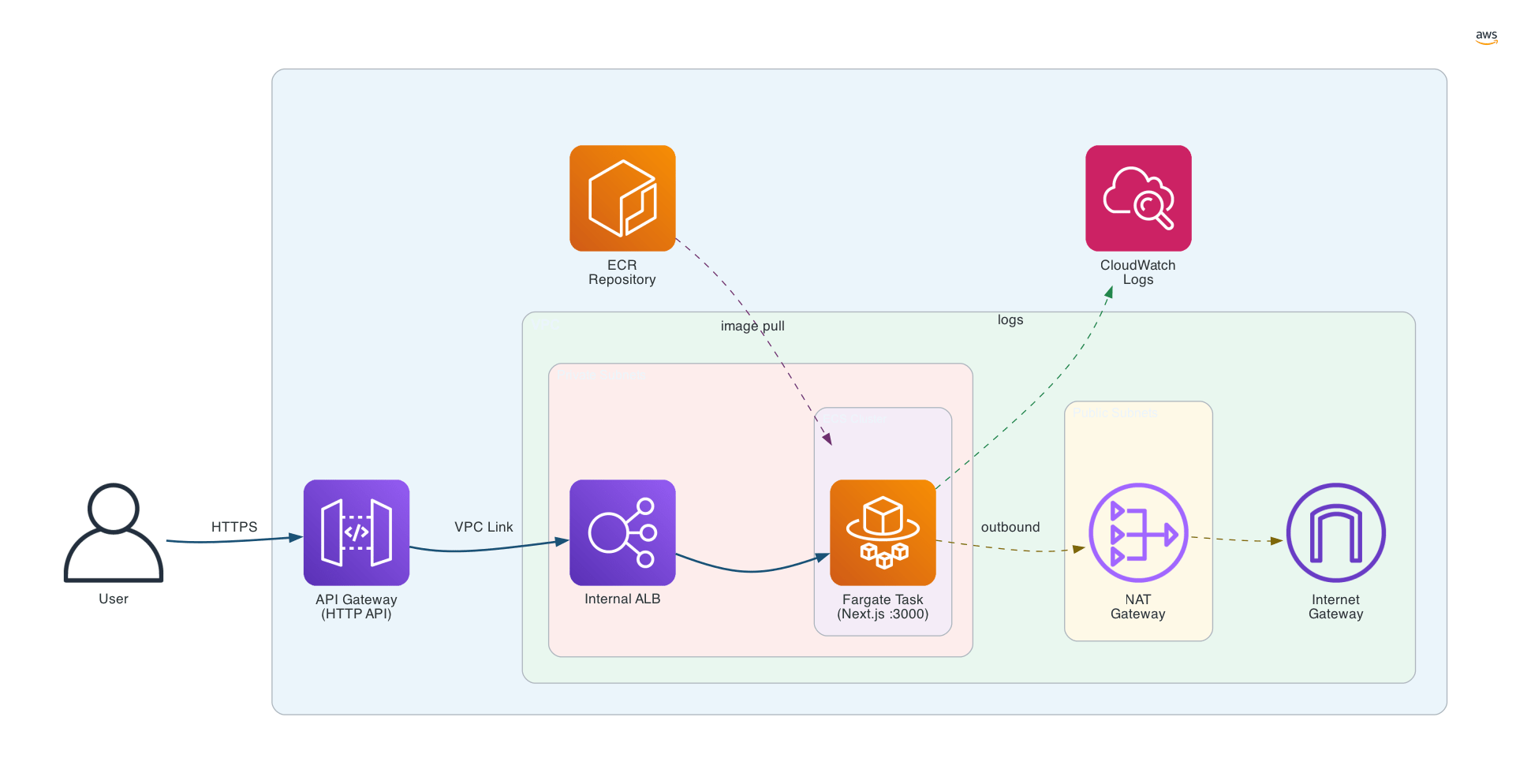
The architecture is built around a single VPC that is split into two tiers — a public tier and a private tier — each serving a distinct role.
Public Tier
The public subnets contain the components that need outbound internet access. A NAT Gateway sits here, allowing resources in the private subnets to make outbound calls (for example, pulling container images or reaching AWS service endpoints) without being directly reachable from the internet. An Internet Gateway is attached to the VPC to facilitate this outbound traffic.
Importantly, there is no application workload in the public tier. Nothing serving the React app is exposed here.
Private Tier
The private subnets are where all the application workload lives. Two key resources sit here:
- Internal Application Load Balancer (ALB) — this ALB has no public-facing DNS. It is only reachable from within the VPC or via an API Gateway VPC Link. It listens for incoming HTTP traffic and forwards it to the ECS tasks registered in its target group.
- ECS Fargate Tasks — the containerized React app runs here. Each task gets a private IP address only, with no public IP assigned. The container listens on port 3000 and registers itself with the ALB target group automatically when the service starts.
API Gateway and VPC Link
Sitting outside the VPC entirely, the API Gateway HTTP API is the only public entry point. It exposes a URL to the internet and is configured with two routes — ANY / and ANY /{proxy+} — so all paths are forwarded to the backend.
The API Gateway is connected to the internal ALB through a VPC Link. The VPC Link is what bridges the gap between API Gateway (which lives outside the VPC) and the internal ALB (which lives inside). AWS handles the private network plumbing behind the scenes — from the user’s perspective, they hit the API Gateway URL and the request lands on the React app.
Container Registry
Before the ECS task can run, the Docker image for the React app needs to be stored somewhere AWS can pull it from. An Amazon ECR (Elastic Container Registry) repository holds the built image. When ECS starts a new task, it pulls the image from ECR over the private network using the NAT Gateway for the initial pull — no public image registry required.
Logging
All container output from the ECS tasks is streamed to Amazon CloudWatch Logs. This gives a central place to debug the application without needing to SSH into any servers (there are none with Fargate).
Request Flow
Putting it all together, here is the end-to-end flow when a user opens the React app:
- User sends a request to the API Gateway endpoint URL
- API Gateway matches the route and forwards the request via the VPC Link
- The VPC Link delivers the request to the internal ALB inside the private subnet
- The ALB selects a healthy ECS Fargate task from its target group and forwards the request
- The Next.js app running in the container handles the request and sends back a response
- The response travels back through ALB → VPC Link → API Gateway → user
At no point does any internet traffic touch the ECS task directly. The only publicly addressable component is the API Gateway endpoint.
Infrastructure Walkthrough
Now let’s walk through the Terraform code that provisions all of this. The infrastructure is organized into three modules: networking, compute, and security. All of this lives under infrastructure/, with a dev environment wiring the modules together in environments/dev/main.tf.
Networking Module
This is the foundation of the whole setup. It provisions the VPC, public and private subnets across availability zones, an Internet Gateway, a NAT Gateway (so private resources can reach the internet for things like pulling images without being publicly reachable), and the route tables to wire everything together.
Two security groups are defined here:
web_sg— attached to the ALB, allows inbound HTTP/HTTPS from the internetapp_sg— attached to ECS tasks, allows inbound traffic only fromweb_sgon port 3000
This enforces a clean two-tier boundary — no internet traffic can reach the ECS tasks directly.
The most important resource in this module is the internal ALB. Setting internal = true is what keeps it off the public internet — it has no public DNS and is only reachable from within the VPC or via the API Gateway VPC Link.
resource "aws_lb" "app_svc_lb" {
  name               = "${var.environment_val}-app-svc-lb"
  internal           = true
  load_balancer_type = "application"
  security_groups    = [aws_security_group.web_sg.id]
  subnets            = aws_subnet.app_private[*].id
}
The ALB target group uses target_type = "ip", which is required for Fargate — there are no EC2 instances to register, so Fargate registers each task’s private IP directly.
Compute Module
This module provisions everything needed to run the app and expose it. It covers four things:
ECR — a private container registry to store the Docker image. ECS pulls from here when starting new tasks.
ECS cluster and task definition — the task definition is where the container is configured: the ECR image URL, CPU (512) and memory (1024 MB), port 3000, and CloudWatch log shipping. The cluster itself is just a logical grouping.
ECS service — runs the Fargate tasks in the private subnets. The key setting here is assign_public_ip = false, which ensures tasks never get a public IP. The service also registers tasks with the ALB target group automatically as they start up.
API Gateway + VPC Link — this is the piece that makes the private app accessible from the internet. A VPC Link bridges API Gateway (which lives outside the VPC) to the internal ALB. An HTTP API is created with an HTTP_PROXY integration pointing at the ALB listener, and two routes (ANY / and ANY /{proxy+}) forward all traffic through.
resource "aws_apigatewayv2_integration" "app_alb_integration" {
  api_id             = aws_apigatewayv2_api.app_api.id
  integration_type   = "HTTP_PROXY"
  integration_method = "ANY"
  integration_uri    = var.app_svc_alb_listener_arn
  connection_type    = "VPC_LINK"
  connection_id      = aws_apigatewayv2_vpc_link.app_vpc_link.id
}
The stage is set to $default with auto_deploy = true, so changes go live immediately without a manual deploy step.
Security Module
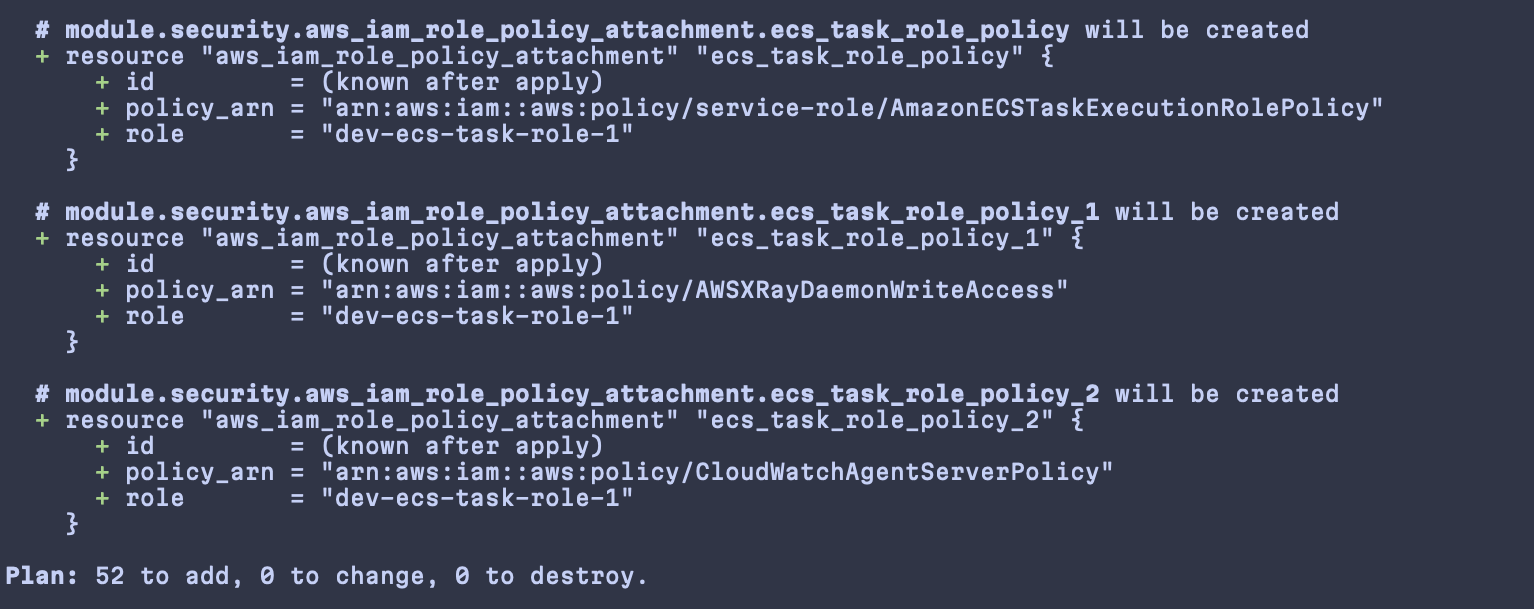
This module defines the IAM role used by ECS as both the execution role and the task role. The execution role lets ECS pull images from ECR and write logs to CloudWatch. The task role is what the running container itself uses to interact with AWS services.
The core permission is the AmazonECSTaskExecutionRolePolicy managed policy. Additional policies for CloudWatch Agent and X-Ray are also attached to support observability.
Application Walkthrough
The application is a standard Next.js app. The main page lives in app/page.tsx — for this post it is a simple scaffold, but the infrastructure pattern works the same regardless of what the app actually does. The focus here is on how it gets packaged and run inside a container.
Dockerfile
The Dockerfile uses a multi-stage build to keep the final image small. The three stages are:
- deps — installs dependencies using
npm cifor a clean, reproducible install frompackage-lock.json - builder — copies the source and runs
npm run buildto produce the Next.js production output - runner — the final image. Only the compiled output and necessary files are copied over from the builder, leaving the build toolchain behind
A few things in the runner stage are worth calling out. A non-root nextjs system user is created and used to run the app — a standard security practice for containerized workloads. And HOSTNAME is explicitly set to 0.0.0.0:
ENV PORT=3000
ENV HOSTNAME=0.0.0.0
CMD ["npm", "start"]
This is important. By default Next.js binds only to localhost, which means ALB health checks — which arrive on the container’s network interface — would fail. Setting HOSTNAME=0.0.0.0 tells Next.js to listen on all interfaces, making the container reachable from the ALB.
One other thing to keep in mind when building locally on Apple Silicon: the image needs to be built for linux/amd64 since that is what ECS Fargate runs on. The Makefile handles this with the --platform linux/amd64 flag.
Deploying the Solution
With the code in place, deploying the full solution involves two phases: provisioning the infrastructure and then building and pushing the container image. A Makefile wraps both phases into numbered targets.
Folder Structure
Before deploying, it helps to understand how the repo is laid out:
.
├── Makefile                          # top-level commands for deploying infra and building the app
├── infrastructure/
│   ├── environments/
│   │   └── dev/                      # the dev environment — Terraform is run from here
│   │       ├── locals.tf             # defines environment name, region, and naming conventions
│   │       ├── main.tf               # wires the three modules together and passes variables between them
│   │       └── provider.tf           # AWS provider configuration
│   └── modules/
│       ├── networking/               # VPC, public/private subnets, NAT Gateway, internal ALB, security groups
│       ├── compute/                  # ECR repository, ECS cluster, task definition, ECS service, API Gateway, VPC Link
│       └── security/                 # IAM task execution role and the policies attached to it
└── src/
    └── api-app/                      # the Next.js application
        ├── app/                      # Next.js app directory — pages and layouts live here
        │   ├── layout.tsx            # root layout wrapping all pages
        │   └── page.tsx              # home page
        ├── Dockerfile                # multi-stage build for the production container image
        └── package.json              # app dependencies and build scripts
The infrastructure/environments/dev directory is where Terraform commands are run from. The modules under infrastructure/modules are reusable and environment-agnostic — the dev environment passes in the values via variables.
Lets Deploy!!
Step 1 — Plan the infrastructure
make 1-plan-infraThis runs terraform init and terraform plan inside infrastructure/environments/dev. Terraform will print out every resource it intends to create — VPC, subnets, NAT Gateway, ALB, security groups, ECR repo, ECS cluster, API Gateway, and the VPC Link. It is worth taking a minute to review the plan output before applying, especially the first time, to make sure nothing unexpected is included.
Step 2 — Apply the infrastructure
make 2-deploy-infraThis runs terraform apply -auto-approve, which provisions all the resources in the correct dependency order. Terraform handles the sequencing — for example, it knows the ECS service depends on the ALB target group, which depends on the VPC, so it wires all of that up automatically.
Once the apply completes, note down the API Gateway endpoint URL from the Terraform outputs — you will need it for testing. You can also find it in the AWS Console under API Gateway → your API → Stages.

Step 3 — Build and push the container image
make 2-1-build-appBefore ECS can run the app, the Docker image needs to be in ECR. This Makefile target takes care of the full flow in one command:
- Authenticates your local Docker client with ECR using
aws ecr get-login-password - Builds the image targeting
linux/amd64(required for Fargate, important if you are on Apple Silicon) - Tags and pushes the image to the ECR repository that was created in Step 2
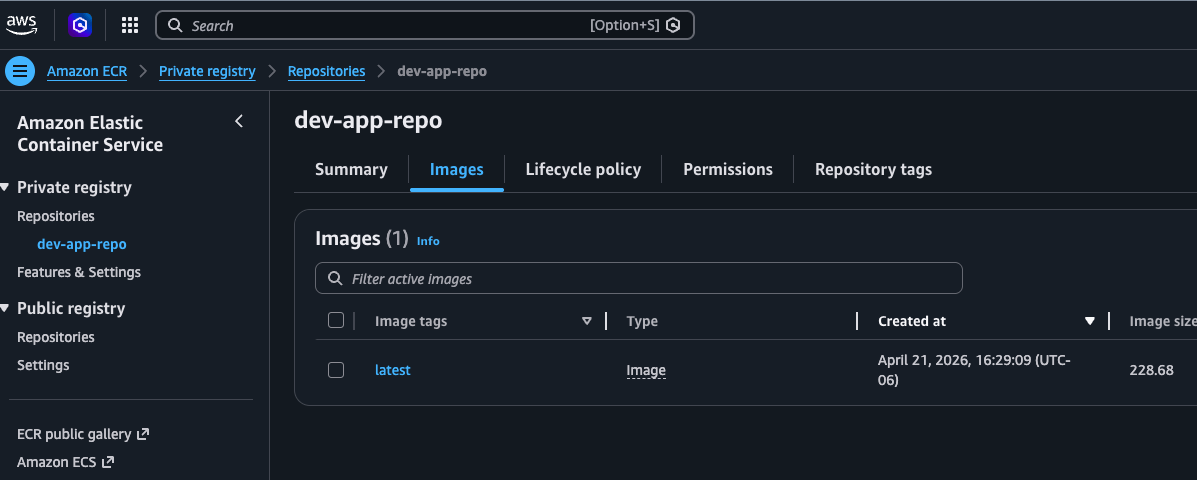
You can verify the image landed in ECR by checking the repository in the AWS Console under Elastic Container Registry.
Step 4 — Start the ECS service
The ECS service is provisioned with desired_count = 0 so no tasks run before the image is available. Once the image is in ECR, bring the service up by setting the desired count to 1:
aws ecs update-service \
  --cluster dev-app-cluster \
  --service dev-app-svc \
  --desired-count 1
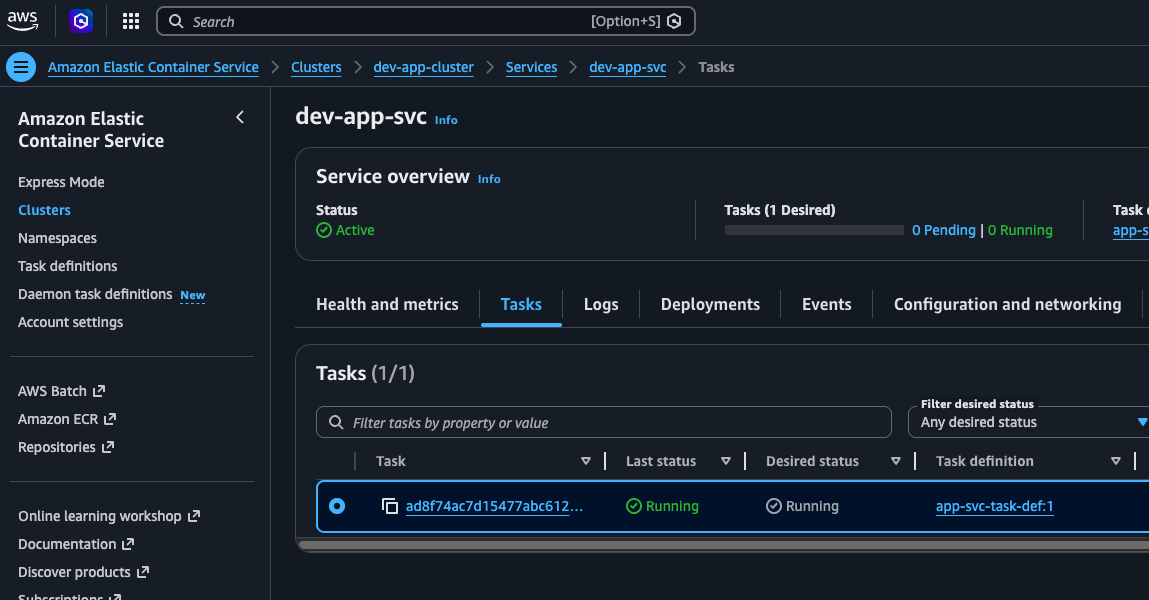
ECS will schedule a Fargate task in the private subnet, pull the image from ECR, and start the container. As the task comes up, it registers its private IP with the ALB target group. Once the ALB health check on port 3000 passes, the task is marked healthy and traffic will start flowing through.
You can watch the task come up in the AWS Console under ECS → Clusters → dev-app-cluster → Tasks.
AWS Resources
Once everything is deployed, it is worth taking a look at the resources in the AWS Console to get a feel for what was provisioned and how it all connects. Here are the key ones to check.
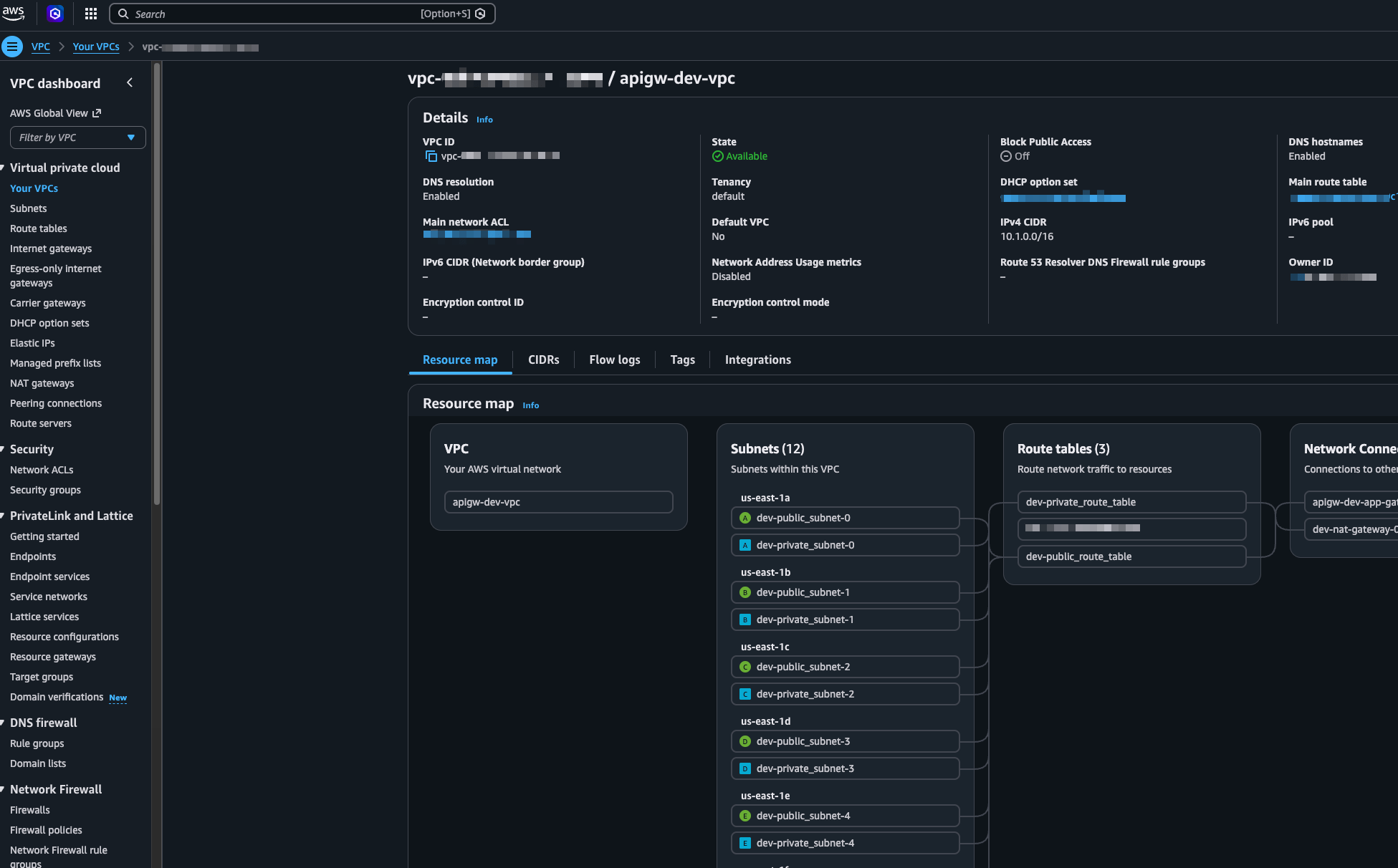
VPC and Subnets
The VPC shows the full network layout — public and private subnets spread across availability zones, the route tables, and the attached Internet Gateway. You can confirm the private subnets have no direct route to the internet, only through the NAT Gateway.
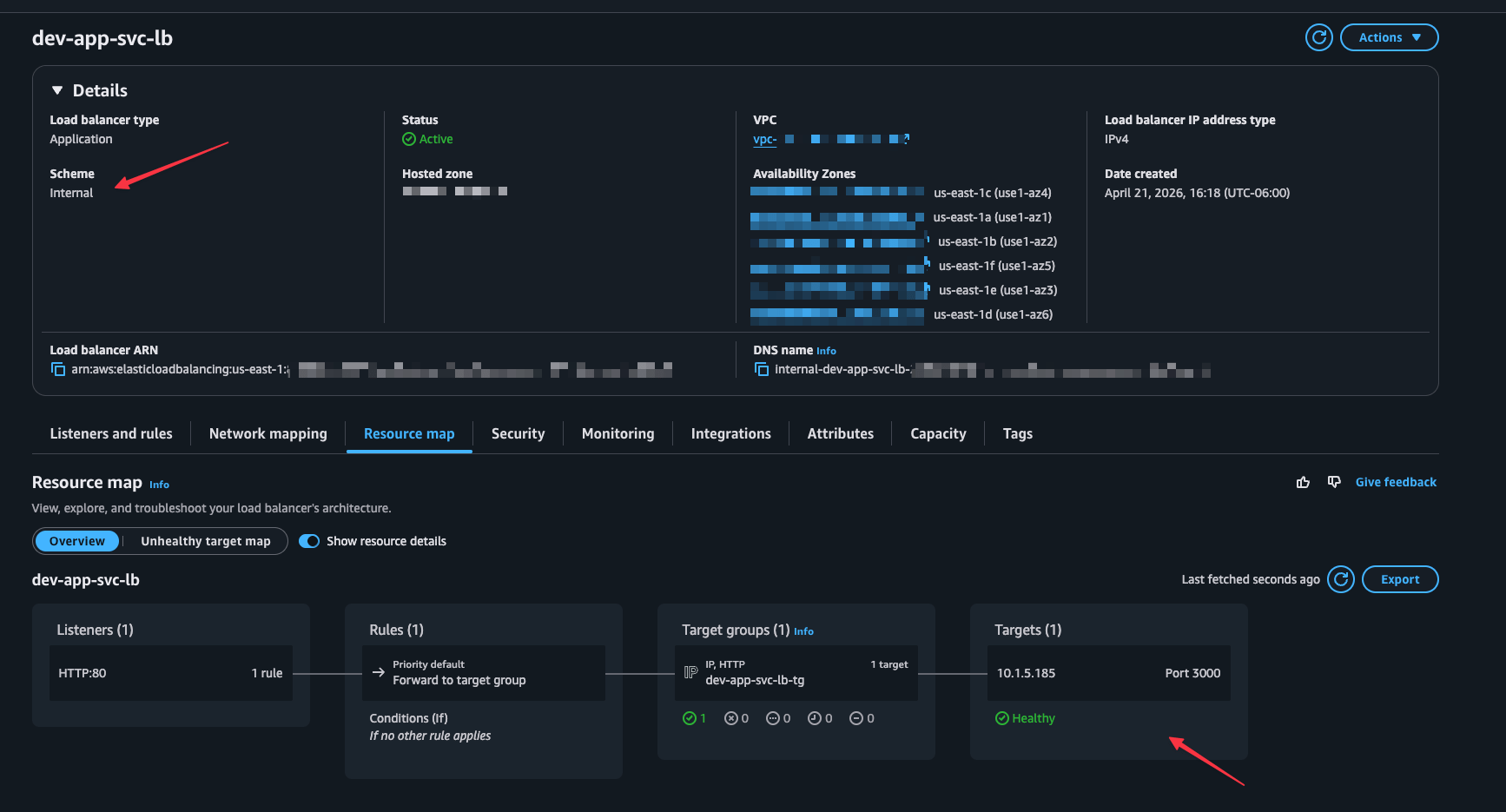
Internal Application Load Balancer
The ALB should show as internal with no public DNS name. Under the target group, you can see the registered ECS task IPs and their health check status. A healthy target here means traffic can flow from the VPC Link all the way to the container.
ECS Cluster and Running Task
The ECS cluster view shows the service and the running task. Clicking into the task shows the private IP it was assigned, the container status, and a link to its CloudWatch logs. Notice that the task has no public IP — the only entry point is through the ALB.
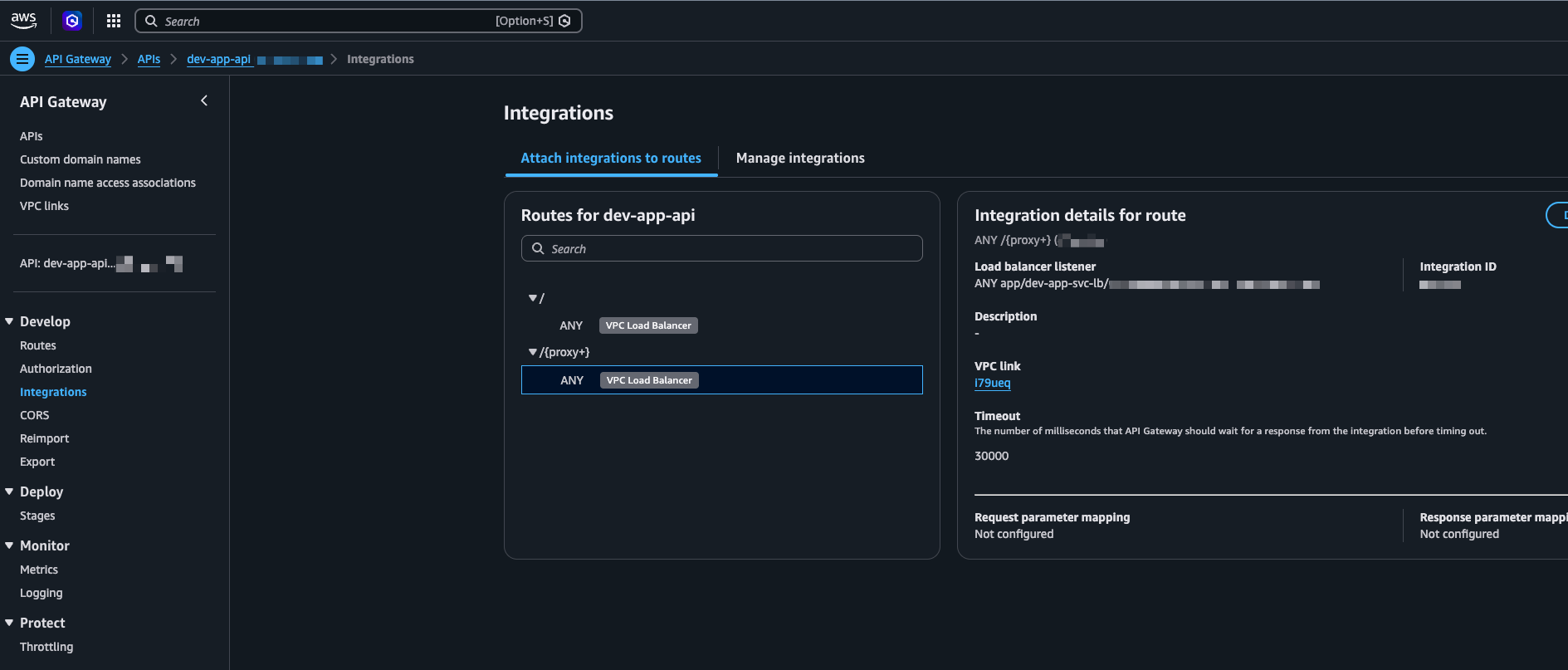
API Gateway
The API Gateway view shows the HTTP API, the two configured routes (ANY / and ANY /{proxy+}), and the VPC Link integration. The endpoint URL shown on the Stages page is the public URL that users hit to reach the app.
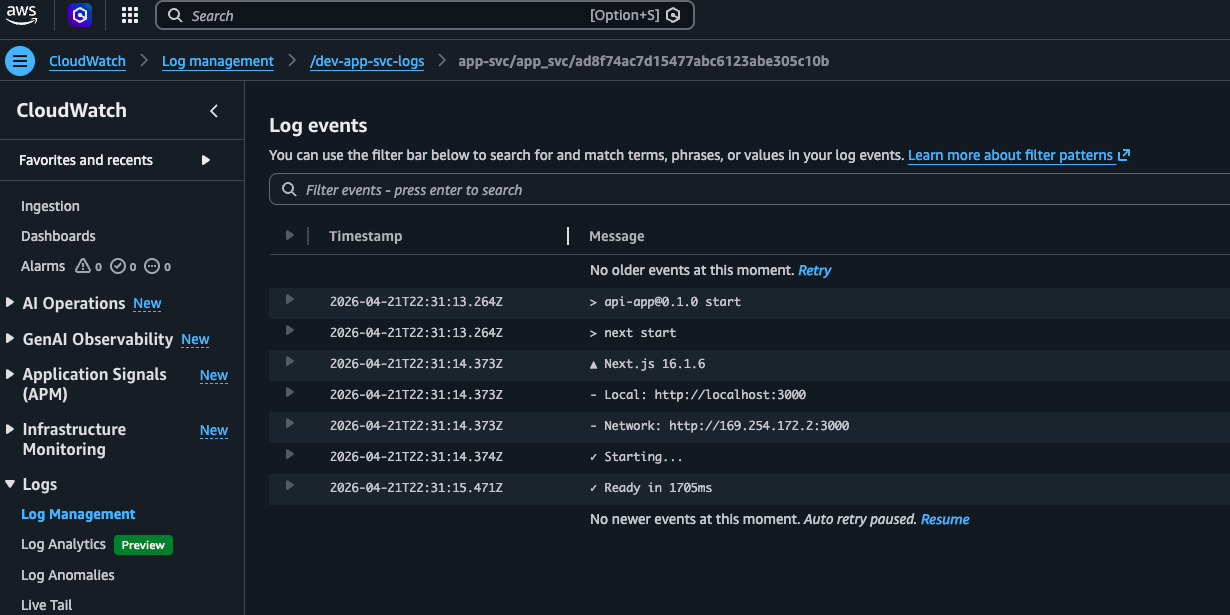
CloudWatch Logs
Container output from the ECS task is streamed to CloudWatch under the log group /dev-app-svc-logs. This is where you would look to debug the app or confirm it is receiving requests.
Testing the Setup
With everything deployed and the ECS task healthy, it is time to verify the end-to-end flow works as expected. There are a few things worth testing here — not just that the app loads, but that the private networking is actually working the way it should.
Step 1 — Get the API Gateway URL
The public entry point is the API Gateway endpoint URL. Grab it from the Terraform output after make 2-deploy-infra, or find it in the AWS Console under API Gateway → your API → Stages → $default.
It will look like:
https://<api-id>.execute-api.us-east-1.amazonaws.comStep 2 — Hit the endpoint
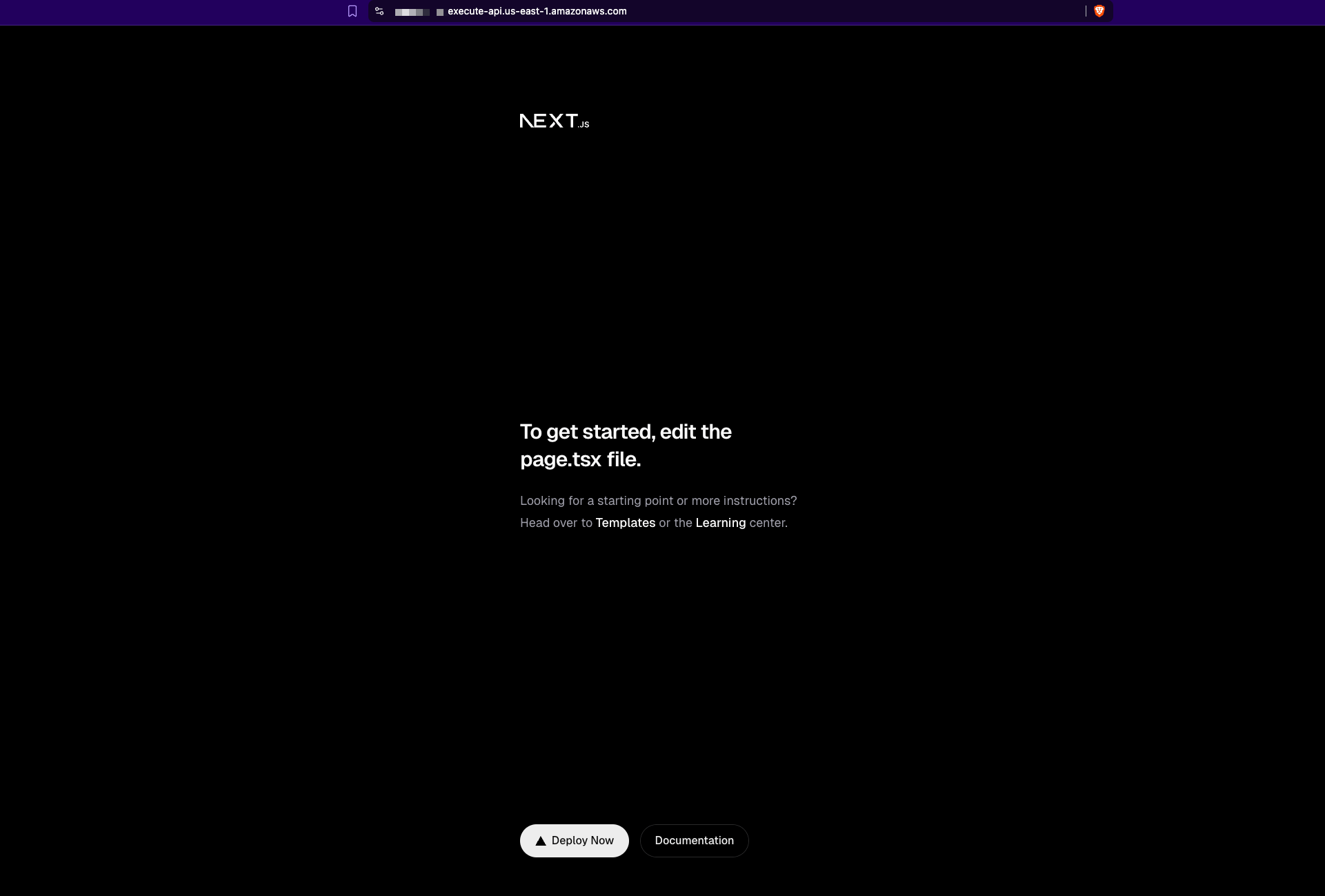
Open the URL in a browser — you should see the Next.js app load. You can also test it from the terminal:
curl -I https://<api-id>.execute-api.us-east-1.amazonaws.comA 200 OK response confirms the full request path is working — API Gateway received the request, forwarded it through the VPC Link to the internal ALB, and the ALB routed it to the ECS Fargate task.
Step 3 — Verify the private networking
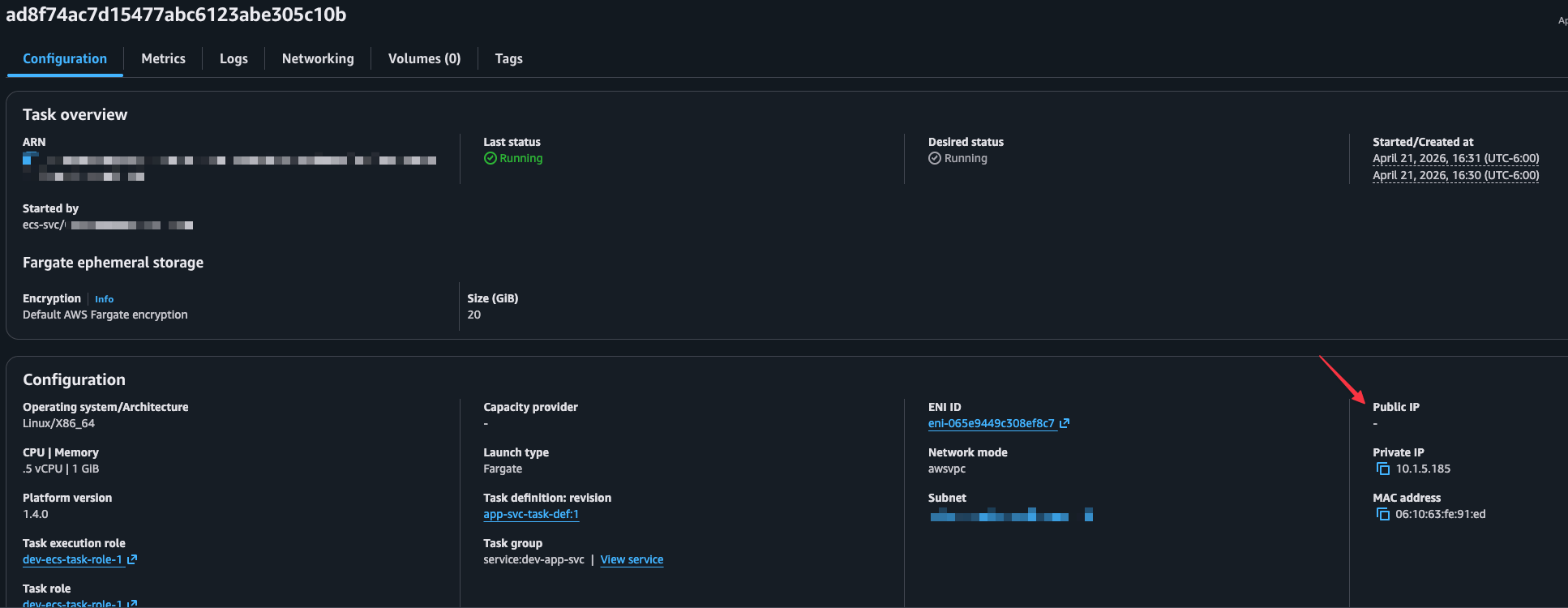
This is an important one. Navigate to the running ECS task in the Console under ECS → Clusters → dev-app-cluster → Tasks. Click into the task and confirm:
- No public IP is assigned — the task only has a private IP in the VPC
- The only way to reach the app is through the API Gateway URL
This confirms the architecture is working as intended — the container is completely off the public internet.
Step 4 — Check the ALB target health
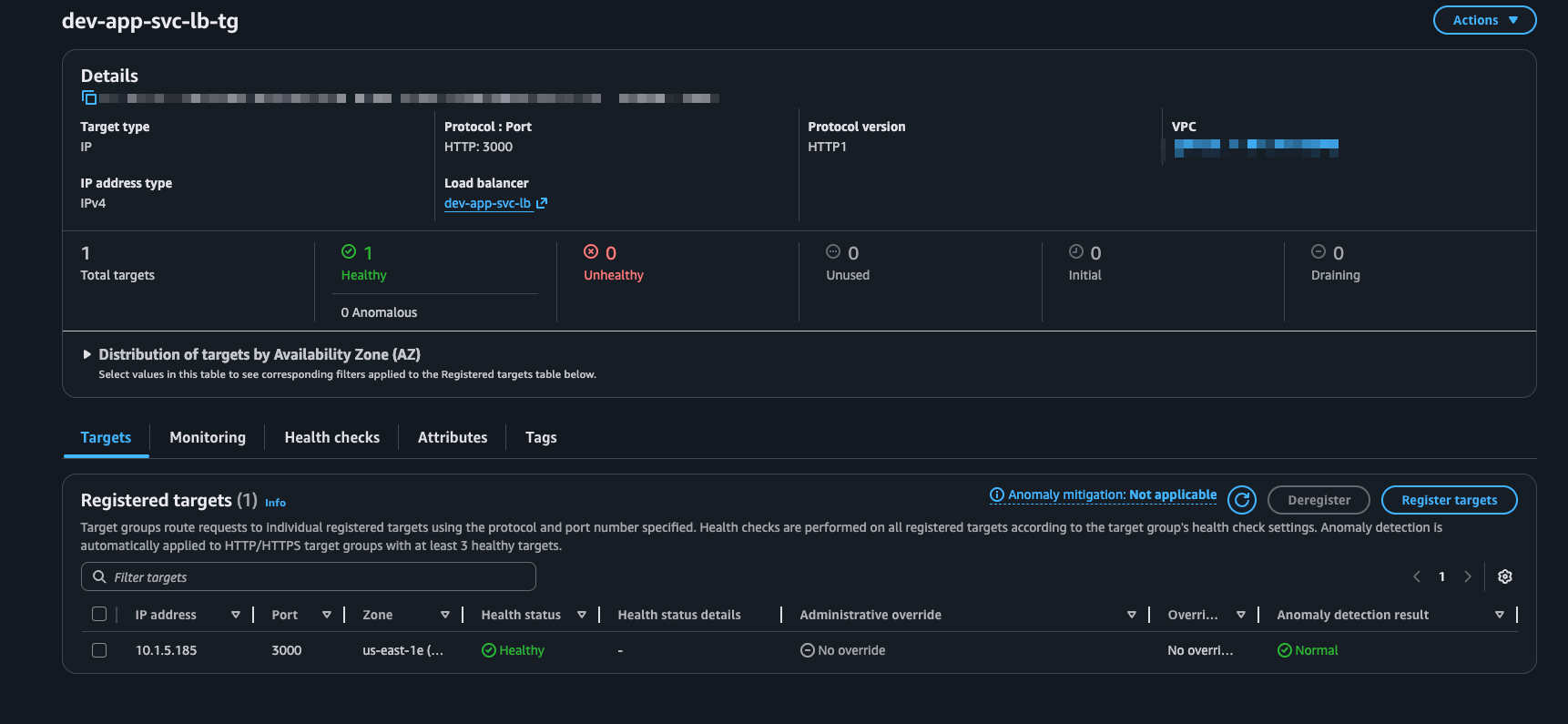
Navigate to EC2 → Load Balancers → dev-app-svc-lb → Target Groups → dev-app-svc-lb-tg. The registered target should show as healthy. If it shows unhealthy, the most common cause is the HOSTNAME=0.0.0.0 environment variable missing from the container — Next.js will only be listening on localhost and the health check on the container’s network interface will fail.
Cleanup
Once you are done testing, make sure to tear down the infrastructure to avoid unnecessary AWS charges. Resources like the NAT Gateway, ALB, and Fargate tasks accrue costs while running even if there is no traffic.
Step 1 — Destroy the infrastructure
make 3-destroy-infraThis runs terraform destroy -auto-approve inside infrastructure/environments/dev. Terraform will remove all provisioned resources in the correct order — ECS service, API Gateway, VPC Link, ALB, NAT Gateway, subnets, and VPC. The ECR repository is also deleted since it was created with force_delete = true, which means Terraform can remove it even if it still contains images.
Once complete, verify in the AWS Console that the resources are gone — particularly the NAT Gateway and ALB, as these are the most common sources of unexpected charges if a destroy is incomplete.
Step 2 — Clean up local Docker images
make 4-cleanThis removes the locally built Docker images that were created during the build step. It is a good habit to run this after a project teardown to keep your local Docker environment tidy, especially since the linux/amd64 image can be a few hundred MB.
Conclusion
In this post, we walked through deploying a Next.js React app as a private ECS Fargate workload and exposing it to the internet through AWS API Gateway — without ever putting the application itself on the public internet. The key pieces that make this pattern work are the internal ALB sitting in the private subnet, and the VPC Link that bridges API Gateway into the VPC to reach it.
Everything was provisioned with Terraform, split across three focused modules — networking, compute, and security — making it straightforward to understand, modify, and extend. The Makefile ties the deployment workflow together into a handful of commands.
This pattern is a solid foundation for any containerized web application that needs to stay private while remaining publicly accessible. It is easy to build on — you can swap the Next.js app for any other containerized service, add a custom domain with Route 53 and ACM, or layer on API Gateway features like throttling and authorization as your requirements grow.
The full code is available on Github Here.